Shopify guide · 6 min read
Shopify wall art product images: variant photos for size, frame and canvas
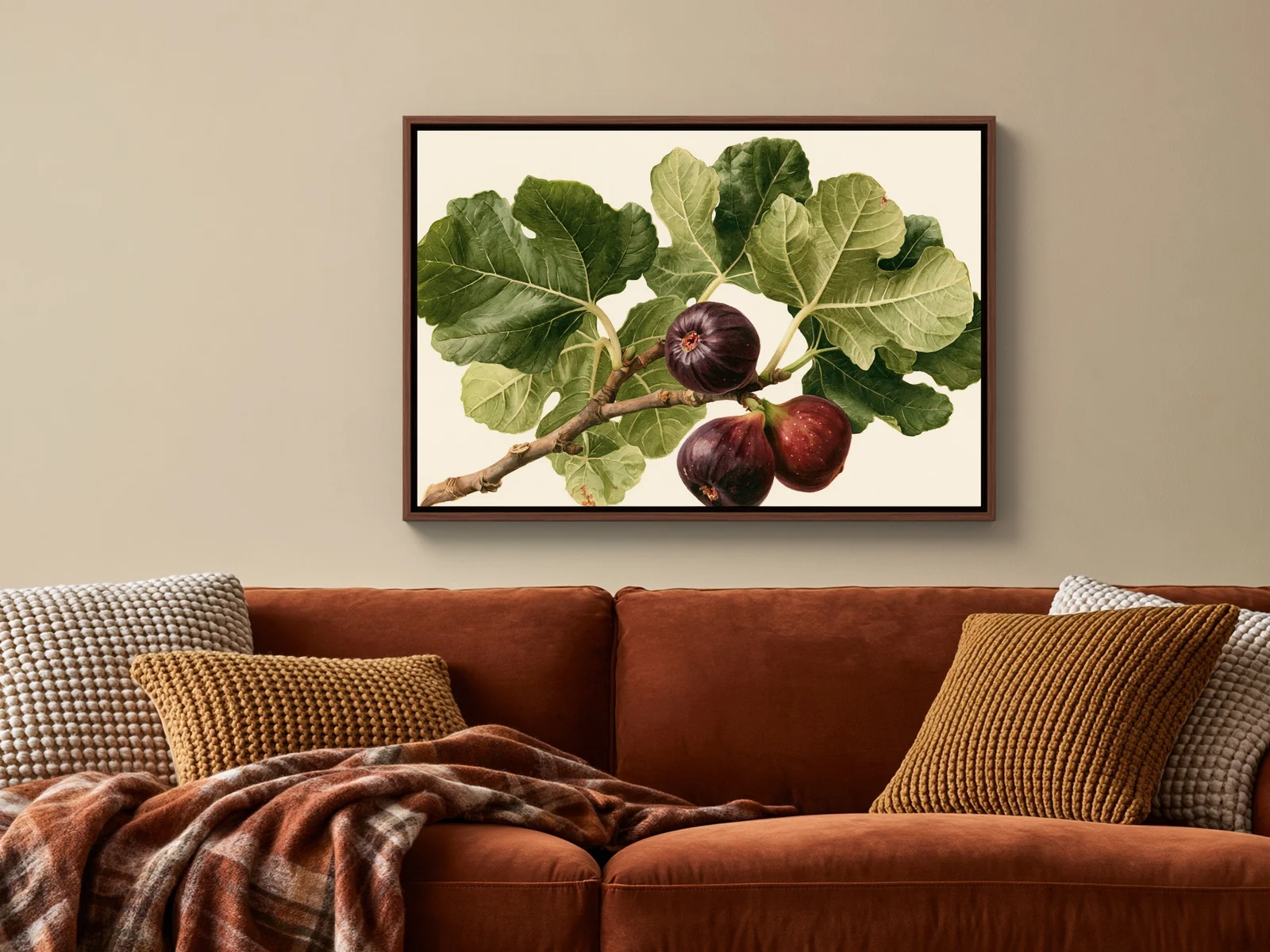
Short answer: Give each frame colour variant its own image from the product's media, made in the same room so only the frame changes, then group the extra photos for that colour next to it in the gallery. Shopify allows one assigned image per variant, up to 250 media items per product and up to 2,048 variants. Square images around 2048 × 2048 px usually display best. After a print-on-demand sync, check every variant still points to the right photo.
On a Shopify product page, the variant image is what changes when a buyer clicks "Walnut". If it doesn't change, or shows the wrong frame, the page feels broken. This guide sets up options and images for framed canvas and prints, with a bulk mockup generator for the matching room photos.
What Shopify allows
From Shopify's help pages (checked 2026-10-29):
| Rule | Shopify's limit or advice |
|---|---|
| Options per product | Up to 3, such as size, colour and style |
| Variants per product | Up to 2,048. Some themes, apps and sales channels may not support more than 100 |
| Media per product | Up to 250 items, such as images |
| Image per variant | One, chosen from the product's media list. No videos or 3D models on variants |
| Image size | 2048 × 2048 px usually displays best for square images; up to 5000 × 5000 px or 25 megapixels |
| File size | Under 20 MB |
| File type | PNG, then JPEG, for most product images |
Sources: Shopify: Adding variants, Shopify: Adding images to product variants, Shopify: Product media types.
Shopify also says to use a consistent aspect ratio for your main product images, so they appear at the same size on collection pages. Pick square or one other shape for every wall art product and stick to it.
Set up options for wall art
Three options are enough for almost any wall art shop:
- Size, limited to sizes in the artwork's ratio family, so none of them crops the art (check with the print size calculator).
- Frame, with the finishes your print provider makes: for example black, white, natural oak and walnut.
- Format only if you sell several products on one page, such as framed canvas and framed print.
Four sizes × four frames × two formats is 32 variants, comfortably under the 100 that some themes and apps handle. Keep an eye on that number before you add a fifth size or a sixth colour.
As on Etsy, a separate product for canvas and for framed prints is often clearer, because each needs its own photos and title. Our Etsy variations guide explains the same choice for an Etsy listing.
Assign one image to each variant
Upload all the photos to the product first. Then, from Shopify's help page:
- In your Shopify admin, go to Products and open the product.
- In the Variants section, click the image icon next to a variant.
- Select an existing product image, or upload a new one.
- Click Done, then Save.
When a buyer selects that variant, its image becomes the preview, and they can still scroll the rest of the gallery. Since each variant gets one image, Shopify suggests arranging related images in sequence so they appear together. For wall art that means:
| Gallery position | Image | Assigned to |
|---|---|---|
| 1 | Hero room, black frame | All black variants |
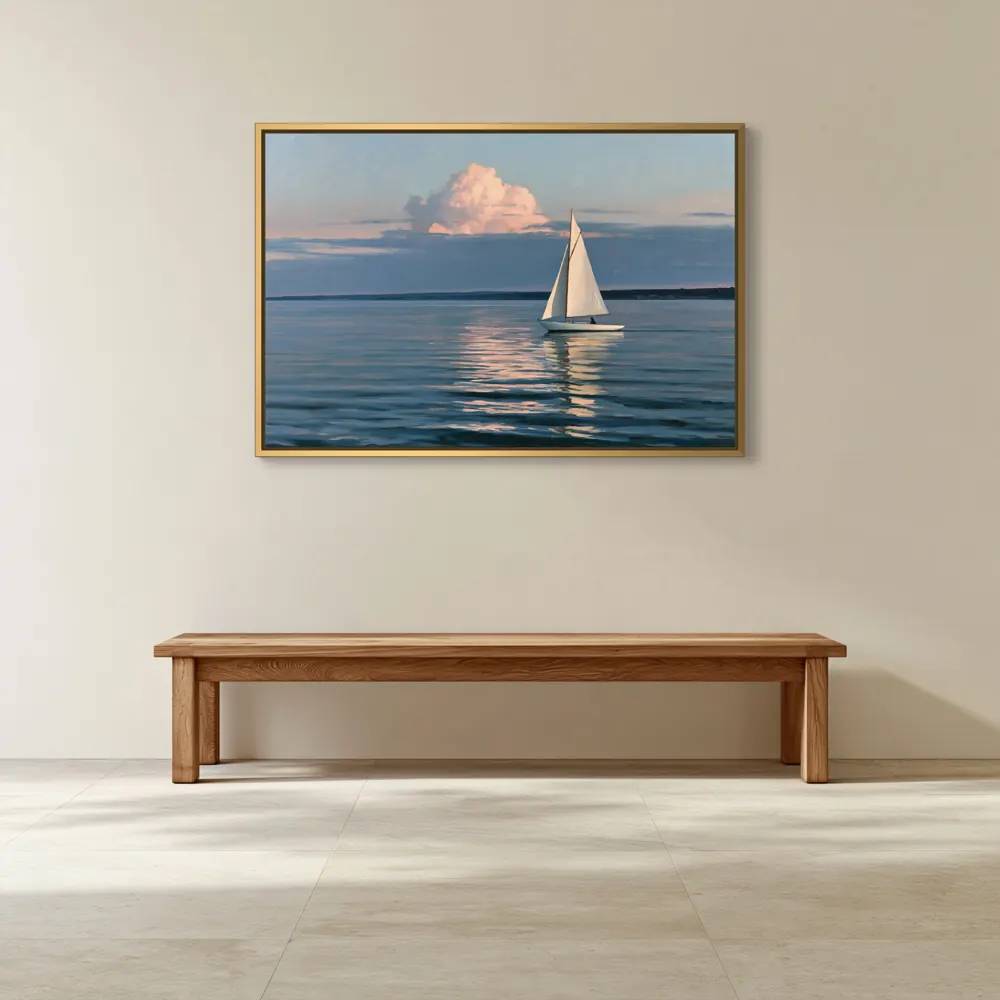
| 2 | Same room, natural oak frame | All oak variants |
| 3 | Same room, walnut frame | All walnut variants |
| 4 | Same room, white frame | All white variants |
| 5 | Size guide image | None (shared) |
| 6–10 | Close-up, sample photo, other rooms | None (shared) |
If sizes share one image per frame, label the depicted size and keep that view illustrative. A separate chart compares the offered dimensions; see how to make a size guide image.
Fixing images after a print-on-demand sync
Print-on-demand apps create the Shopify product for you, with their own mockups. Trouble starts when you add your own room photos and the app publishes again. Common symptoms and the fix in Shopify:
| What you see | Likely cause | What to do |
|---|---|---|
| A new size or colour shows no image | The app added the variant without a picture | Open the variant, click the image icon and assign the matching photo |
| Your room photos were replaced | The app republished its mockups | Re-upload from your saved copies; next time publish without the app's mockups |
| Clicking a colour shows the wrong frame | The variant points to the wrong media item | Reassign the image; name files by colour so it's obvious |
| Photos for one colour are scattered | The images are in upload order, not grouped by colour | Drag related images next to each other |
Each app has its own publish settings. Our Printify mockups guide shows which setting keeps your own photos, and the Printful mockups guide covers refreshing Printful's mockups and adding your own in the store. Whatever the app, keep the original image files yourself, so you can restore the images if a sync changes them.
Image sizes and shape
- Shape: square is the safe default for a Shopify theme's product and collection grids. If your theme crops to another shape, use that shape for every main image.
- Size: at least 2048 px on each side, the size Shopify says usually displays best for square images. Free accounts include 10 watermark-free 4K (4096 px) single-artwork downloads every 30 days. Paid plans add more images (Lite 200 a month, Pro unlimited), sets and listing kits; Pro adds listing videos. Send to Shopify is in limited beta on Pro and the WallMock Studio plan, and will be on every plan when it opens. That is a long-edge size; a crop or narrow aspect ratio reduces the short edge. Check the final file against your theme’s requirements.
- Colour: export in sRGB for web delivery; this can still look different on another display.
- Art in the centre: keep the artwork whole and near the middle, so a theme that crops for collection grids still shows it.
Making the variant set with WallMock
WallMock makes the photos; on Lite and Free you add them to Shopify yourself for now. Send to Shopify, which adds them to your products for you, is in limited beta on Pro (1 store, up to 10 products a month) and the WallMock Studio plan (up to 3 stores, unlimited products). When it opens to all stores it will be on every plan: up to 10 products a month on Free, Lite and Pro, unlimited on the WallMock Studio plan; see how to add mockups to Shopify products automatically.
- Upload the artwork and choose one room for the variant set.
- Make the same room in each finish you sell: black, white, natural oak, natural wood, walnut, espresso, gold, silver, or stretched canvas. Framed prints come with or without a mat.
- Save the room and finishes as favourites, then run the whole collection through them. Sets of 2, 3 or 4 work too.
- Download individual JPEGs or a ZIP, name each file by artwork and frame, upload to the product and assign one per variant.
Shopify image size: the numbers, rechecked
On 8 November 2026 Shopify’s product media page still said: square product images usually display best at 2048 × 2048 px; images can be up to 5000 × 5000 px or 25 megapixels; files must be under 20 MB; PNG, then JPEG, is best for most product images; and main images should share one aspect ratio so collection pages line up (source). A 4096 × 4096 px WallMock square is 16.8 megapixels, inside those limits. Product videos can be up to 10 minutes, 1 GB and 4K. For framed posters and metal prints, see print on demand posters and metal prints.
Read next: Etsy vs Shopify for wall art, Printify mockups and one look for the whole shop.
Sources
- Shopify Help: Adding images to product variants, checked 2026-10-29
- Shopify Help: Adding variants, checked 2026-10-29
- Shopify Help: Product media types, checked 2026-11-08